🪟 Section 8: App Skeleton + State (app.py)
📝 Summary
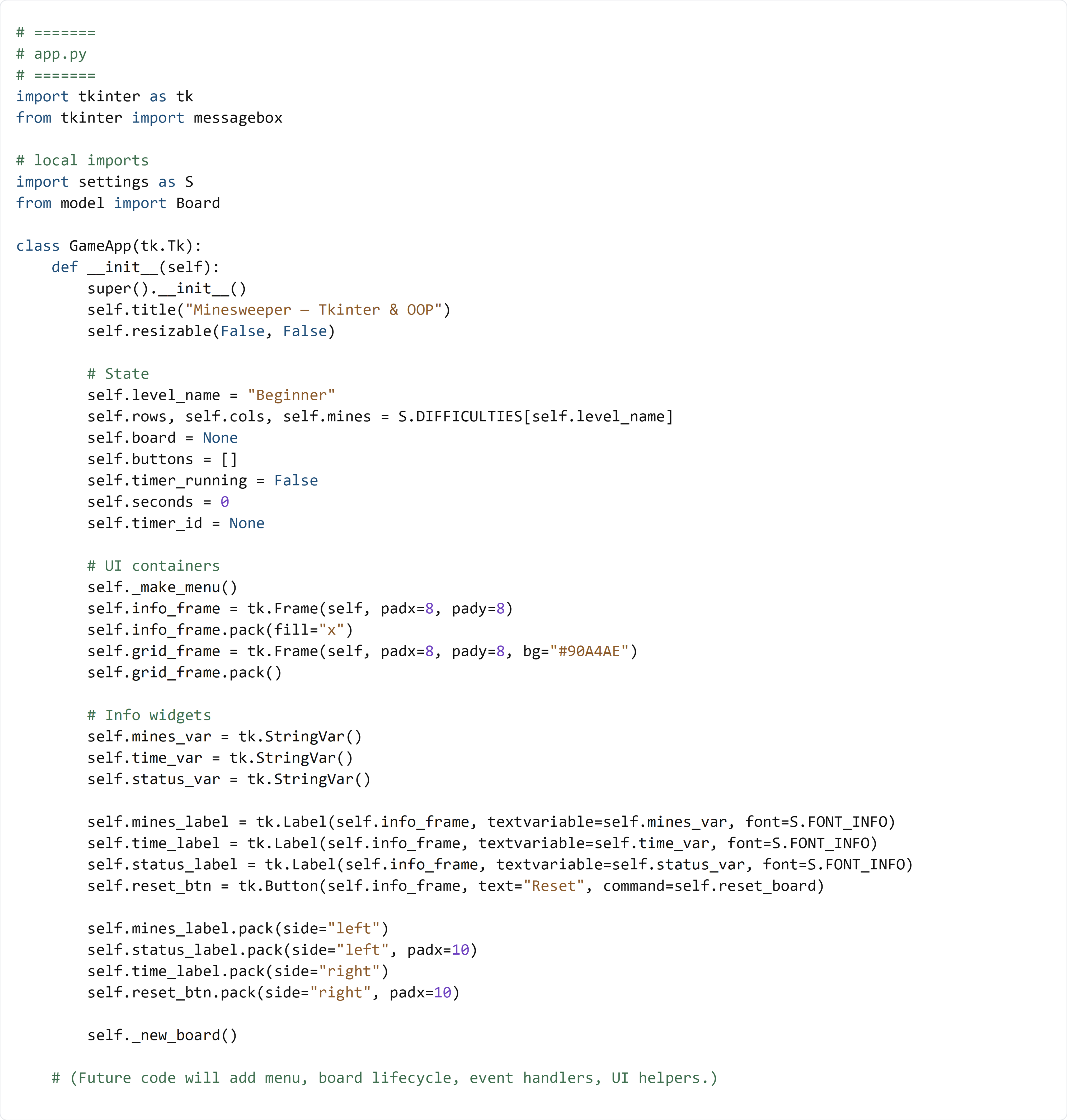
In this section, you will create app.py and build the main Tkinter application class (GameApp). You’ll set up the window, create the main frames and labels, and store important game/UI state in instance variables so the rest of the project can plug into it later.
✅ Checklist
- Create a new file named
app.pyin the project root. - Add the Tkinter imports and local imports at the top of the file.
- Create a
GameAppclass that subclassestk.Tk. - In
__init__, initialize window settings (title and resize behavior). - Create instance variables for game state (difficulty, board, buttons, timer values).
- Create the main UI containers (info frame + grid frame).
- Create label variables (
StringVar) and labels/buttons that display them. - Call
_new_board()at the end to start the first game (we will implement it later).
🎓 Core Concepts
Subclassing tk.Tk: Tkinter apps start with a root window (tk.Tk). By making GameApp(tk.Tk), we bundle the entire app into one object so it can hold state and methods (like reset_board(), click handlers, and UI updates).
Frames organize layout: A Frame is a container widget. Here we use:
- info_frame for the top row (mines, status, time, reset).
- grid_frame for the Minesweeper button grid.
State lives in instance variables: The app needs to remember things between button clicks. Instance variables like self.level_name, self.board, and self.seconds store the current game state. Later methods will read and update these.
StringVar connects state to labels: Tkinter Label widgets can display a StringVar. When you update the variable (like self.time_var.set("Time: 10")), the label updates automatically. This is a clean way to keep the UI in sync with the model.
💻 Code to Write (create app.py)
Type this by hand so you understand each piece. Keep imports at the top of the file (that’s standard Python style and helps avoid circular-import problems).
🧠 Code Review & Key Concepts
class GameApp(tk.Tk) makes the window itself an object we can attach methods and state to.
super().__init__() creates the actual Tkinter root window. Without it, widgets can’t be created.
self.level_name and S.DIFFICULTIES[...] pick a preset from your settings.py so the UI and model agree on board size and mine count.
self.board will hold the Board model object later, and self.buttons will hold the Tkinter button widgets that represent cells.
StringVar objects (mines_var, time_var, status_var) are the “bridge” between Python state and label text.
self._make_menu(), self.reset_board, and self._new_board() are called here, but they don’t exist yet. That’s okay for now: we’re building the skeleton first, and later sections will fill those methods in.
🧪 Test File (create s8_test.py)
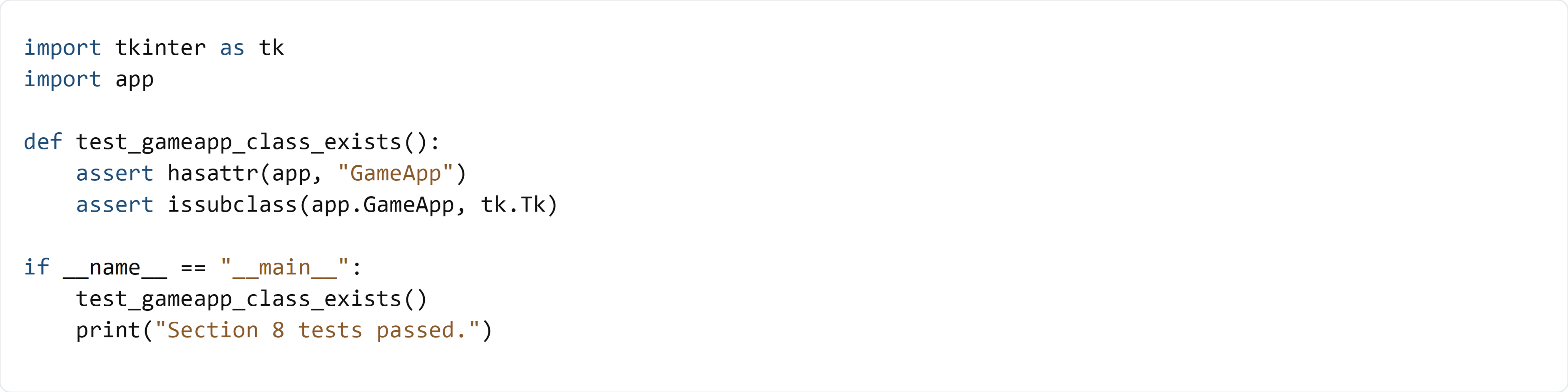
This test is intentionally lightweight. It verifies that app.py imports successfully and that GameApp is a real subclass of tk.Tk. We do not instantiate GameApp yet because __init__ calls methods like _make_menu() and _new_board() that will be implemented in later sections.